
How to add users and manage permissions in Klaviyo
Give your team or your agency access by following these steps. We show you where to invite a user, which permissions to choose and how to check that they can get in.
 By Dídac Anton
Before you start
To give someone else access, send them an invitation from your Klaviyo account. You do not need to share your password or create a second account for the shop.
You will need to be signed in as Owner or Admin and to have the email address of the person you are inviting to hand. If someone on your team manages the account and you cannot see the Users area, ask them to follow these steps.
The screenshots are the ones from our original guide, taken in December 2025. We re-checked the procedure against Klaviyo's documentation in September 2026. Some names and options may vary depending on the language or the version of your account.
1. Open your account settings
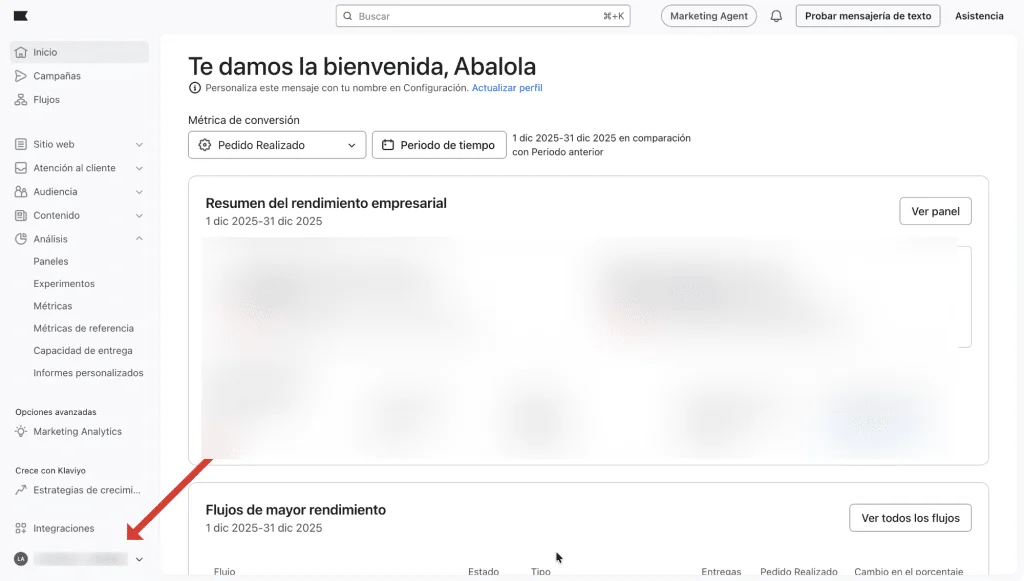
Sign in to Klaviyo and click your account name at the bottom left. In the menu that opens, select Settings.
If you have access to several shops, first check that you are in the account you want to add the person to.
2. Go to Users
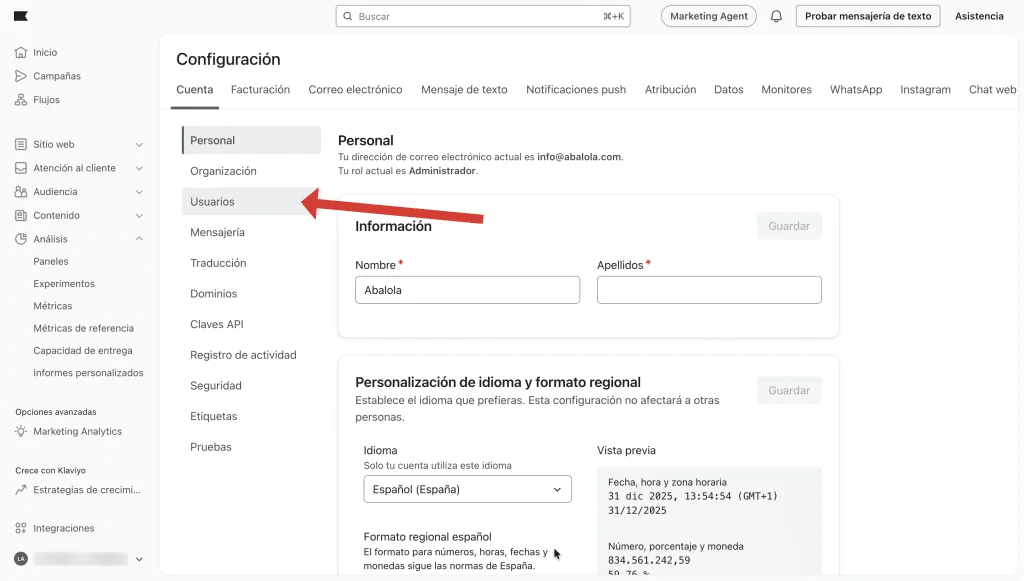
Inside Settings, open Account and select Users in the side menu. Here you can see who has access to this account.
Do not confuse this area with profiles or contact lists: those belong to your audience. Users is where your team's access is managed.
3. Click Add new user
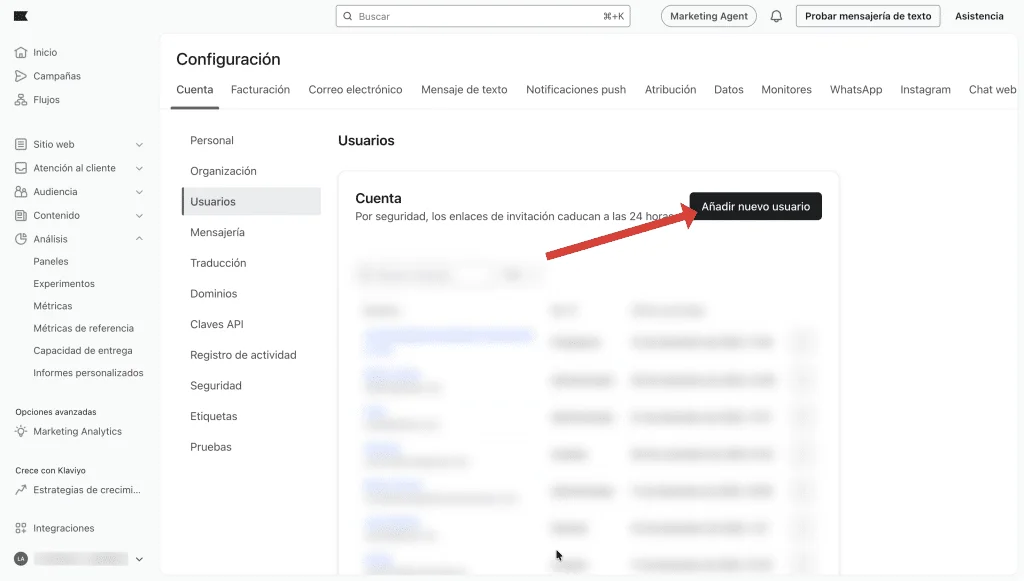
The Add new user button is at the top of the panel. Click it to open the invitation form.
4. Enter the email and choose the language
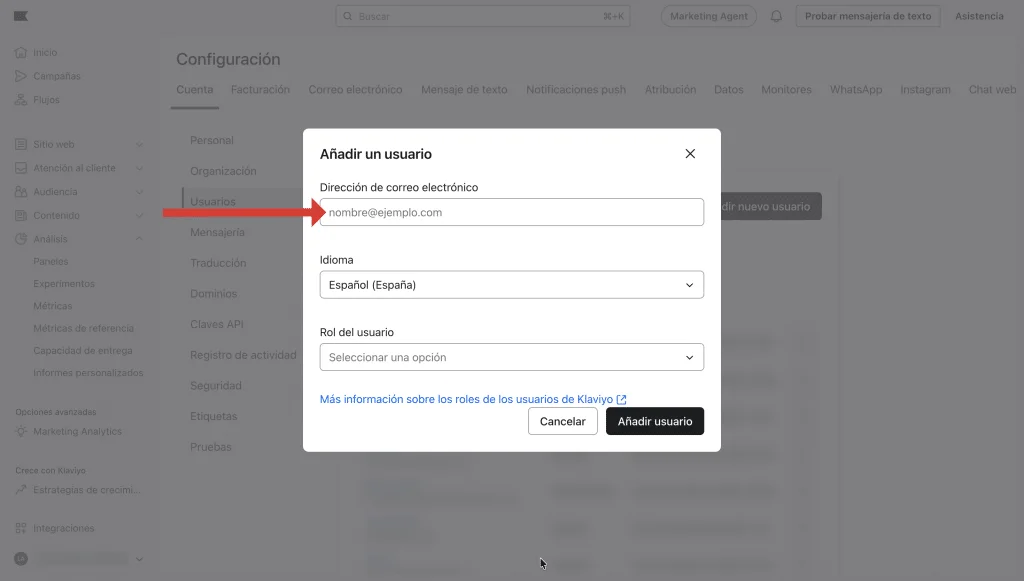
Enter the email address that person will use to sign in to Klaviyo. Check it before carrying on: the invitation will be sent to that address.
Also select the language of the invitation from the options available. If you are giving access to Abalola, use the address we gave you when we started.
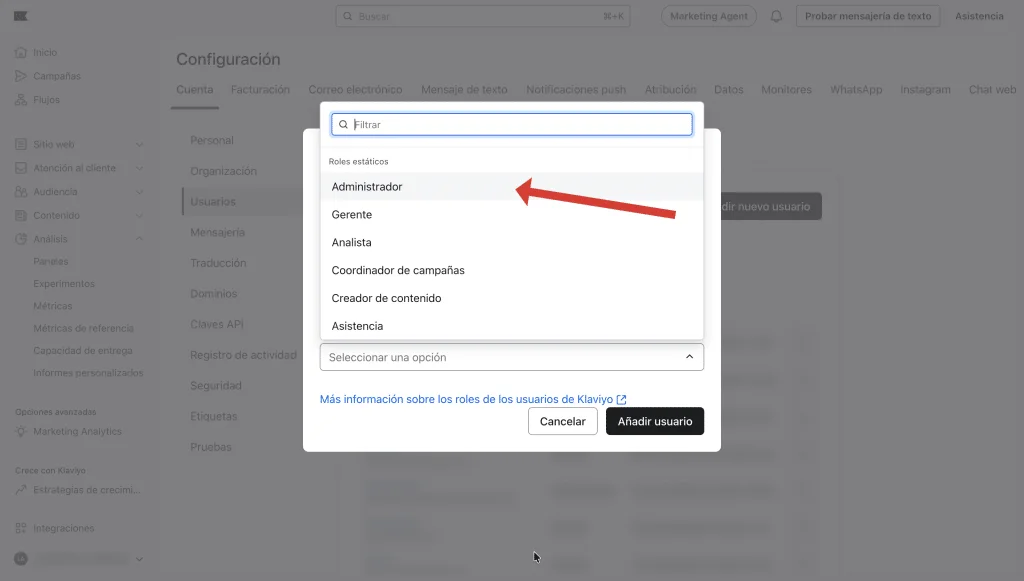
5. Select the role
Open the User role selector. The role determines what that person will be able to see and change. If you have agreed on administrator access, select Admin, as in the screenshot.
For specific tasks a more limited permission may be enough. There is a table further down to guide you before you send the invitation. Giving Admin access does not change who owns the account.
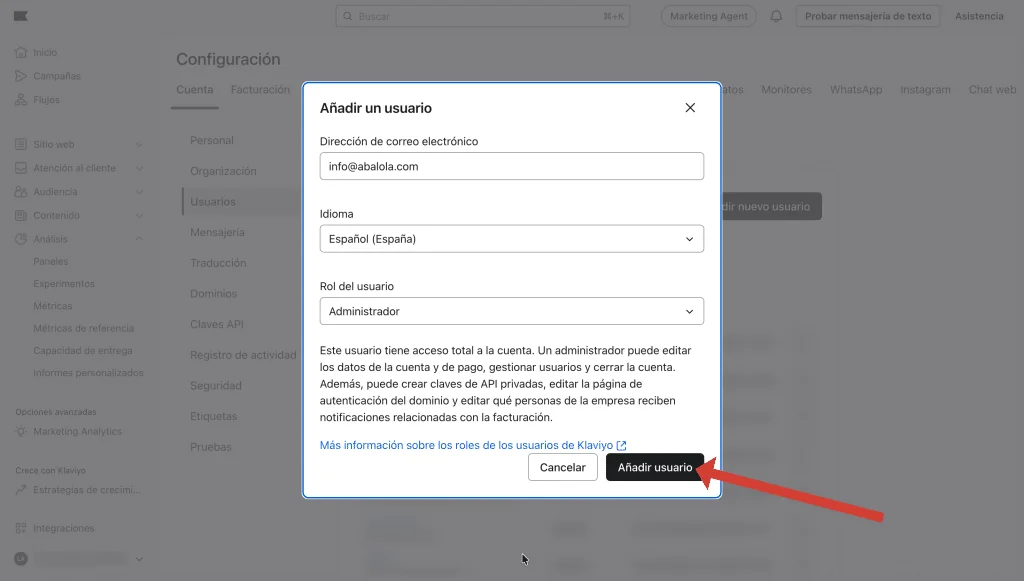
6. Send the invitation
Check the email, the language and the role. Then click Add User. Klaviyo will send the invitation by email.
This step does not complete the access yet: the person invited has to accept the email. Let them know through whichever channel you normally use so that they find it and open it.
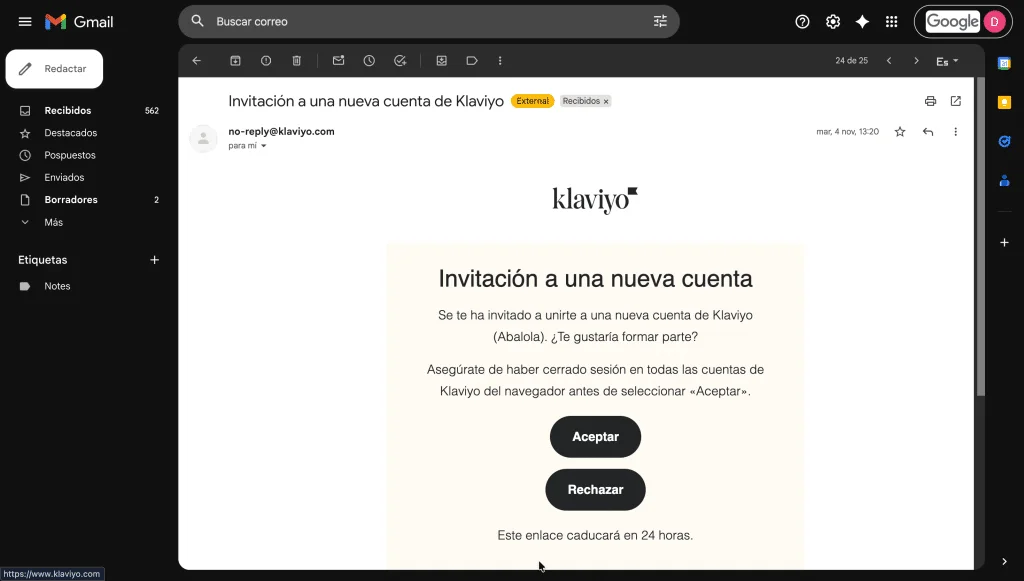
7. Accept the email and check the access
The person invited will receive an email from Klaviyo inviting them to join the account. They need to open it and click Accept. If they already have other Klaviyo accounts open in the browser, it is worth closing those sessions before accepting.
They then need to sign in with the same email address that received the invitation. If they manage several shops, they can select the relevant account from the account menu.
To finish, go back to Users and check the status of the invitation. Also ask them to confirm that they can see the right shop and can open the areas they need. That way you spot an insufficient permission before you start working.
Which Klaviyo role to choose
Choose the role according to the work that will be done. Someone who designs templates does not usually need the same permissions as someone who administers the whole account.
| Role | What it is for |
|---|---|
| Owner | There is one per account. Retains control of the account and can transfer its ownership. |
| Admin | Broad administration, including user management. It is not the same as being the owner. |
| Manager | Day-to-day work with campaigns and flows, with restrictions. Does not manage users. |
| Analyst | Viewing analytics and reports, with restricted access to other features. |
| Campaign Coordinator | Creating and sending campaigns; limited access to other areas. |
| Content Creator | Working with content and templates; does not allow campaigns to be sent. |
| Support | Customer support and viewing profiles. |
| Social Media Manager | Managing social media content and data. |
The official matrix sets out the restrictions of each role. Check it if you need to confirm a specific action; it is linked at the end of the guide. To work with a Klaviyo agency, agree the access according to the tasks, keeping ownership of the account with your business.
How to change permissions or remove access
Go back to Settings → Users and open the person's email address to review or change their role. Save the change and ask them to check their access again.
To remove access, open the three-dot menu next to the user, choose Delete user and confirm. You cannot delete the owner this way: ownership of the account would have to be transferred first.
When a collaboration ends, review which accesses are still needed. If you are changing provider, the guide to migrating to Klaviyo also explains how to organise the handover of documentation and responsibilities.
If the invitation does not work
| What happens | What to check |
|---|---|
| The email does not arrive | Check spam and confirm that the email address is spelled correctly. Look for an invitation to a new Klaviyo account. |
| The link has expired | In Users, open Inactive users. In the three-dot menu, select Resend Invites, tick the email address and send a new one. |
| The Accept button is playing up | Close the other Klaviyo sessions in the browser and open the invitation again. |
| They have accepted, but cannot see the shop | Check that they signed in with the email address that was invited and that they are selecting the right account. |
| Users or Add new user does not appear | Check the role of whoever is trying to invite: they need to be Owner or Admin. |
| They can see the account, but cannot do a task | Check the role assigned and the permission for that action in the official matrix. Do not switch them to Admin without checking what they need. |
Sources and further reading
AI-assisted translation
Article by Dídac Anton. The English, German, Dutch and French versions were translated from Spanish with the help of AI.
Read the Spanish originalRecommended articles
How to connect WhatsApp to Klaviyo
Connect WhatsApp Business to Klaviyo: prepare your number, set up Meta Business, verify your business and check consent.
How to set up the payment method in Klaviyo
Where to add or change your Klaviyo card, what details you need and what to check if a payment fails.

How to set up a sending domain in Klaviyo
Set up your Klaviyo sending domain: choose the subdomain, add the DNS records, verify and activate.