
How to set up the payment method in Klaviyo
Add your business card or replace the one already saved. We show you where to do it and how to check that the change has gone through.
 By Dídac Anton
Before you start
Have the card and the postcode linked to it to hand. Enter the details directly in Klaviyo, from your business account.
To edit billing, sign in as Owner or Admin. If you need someone else to do it, you can give them access as a user instead of sharing your credentials.
1. Go to Billing
Click the organisation name at the bottom left and go to Settings → Billing. Check that you are in the right account if you manage several shops.
Open Payment & Invoices and look for Payment Method. Klaviyo changed this panel in August 2026: the card is now in this area, even though the screenshot in the PDF still shows the old Overview tab.
How to recognise the screenshots from the earlier guide
In the previous panel you got there through Overview → Billing → Update Billing. That is the screen that appears in the Abalola PDF; in the current interface, use Payment & Invoices.
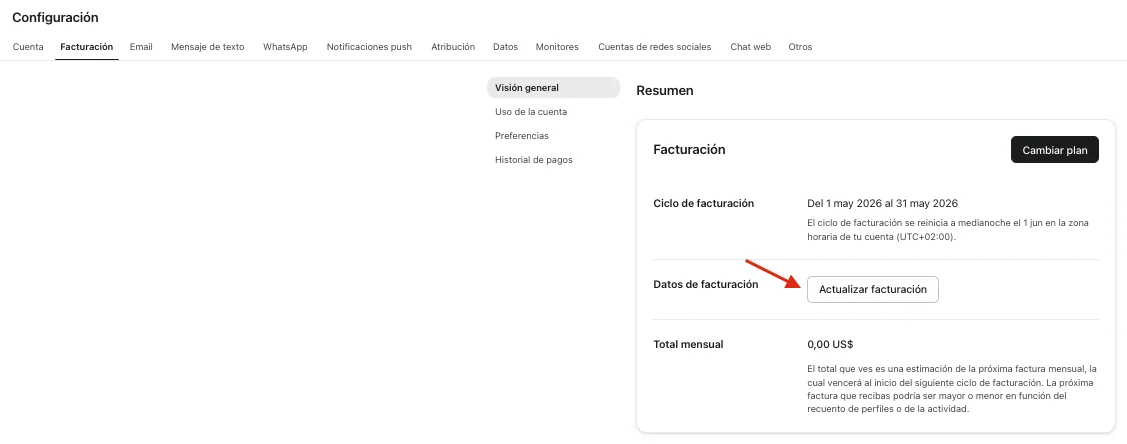
2. Enter the card details
Open the option to update the payment method and enter the card number, the expiry date, the security code, the country and the postcode.
The postcode has to match the one linked to the card; it is not always the same as the company address. The screenshot from the original guide shows the form fields, without the details of a real card.
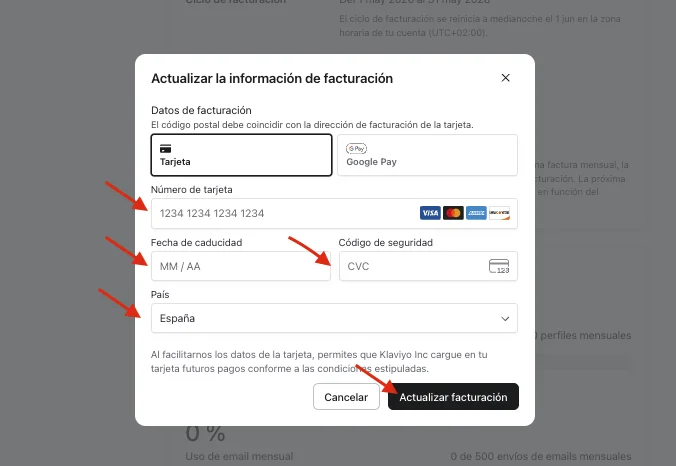
3. Save and check the change
Click the update button shown by the form. Then go back to the payment method area and check that the right card appears.
Also review the billing address if it has changed. Updating the card and changing plan are two different things: you do not need to change the plan to replace the payment method.
If the account is still suspended
Updating the card is not enough if the outstanding charge has not been taken yet. The account is reactivated once Klaviyo successfully processes that payment.
According to their documentation, the retry can take up to an hour. If it is still suspended after that, contact Klaviyo support to check the status of the charge.
| Problem | What to check |
|---|---|
| The form rejects the details | Check the card's expiry date, security code and postcode. |
| The bank declines the charge | Ask the bank why and whether the card allows that payment. |
| You cannot edit billing | Ask the account owner or an administrator to look into it. |
Carry on with the set-up
If you are getting the account ready to start sending, carry on with setting up the sending domain. To invite your team, there is the guide to users and permissions.
Sources and further reading
AI-assisted translation
Article by Dídac Anton. The English, German, Dutch and French versions were translated from Spanish with the help of AI.
Read the Spanish originalRecommended articles
How to set up a sending domain in Klaviyo
Set up your Klaviyo sending domain: choose the subdomain, add the DNS records, verify and activate.
How to add users and manage permissions in Klaviyo
Guide with screenshots for giving access to Klaviyo, choosing the role, accepting the invitation and changing permissions.
How to connect WhatsApp to Klaviyo
Connect WhatsApp Business to Klaviyo: prepare your number, set up Meta Business, verify your business and check consent.