
How to set up a sending domain in Klaviyo
Connect a subdomain of your brand to Klaviyo and check that it is ready to send. You will need access to Klaviyo and to the provider that manages your DNS.
 By Dídac Anton
What you need before you start
The sending domain identifies the infrastructure Klaviyo sends your emails from. It is not the same as the visible sender address, and it does not create a new mailbox.
Make sure you have access to your domain's DNS panel, or find the person who administers it. In Klaviyo you need a role with permission to set up domains: Owner, Admin, Manager or Campaign Coordinator. The guide to users and permissions explains how to grant access.
If you are activating your first marketing domain or replacing the one you use, arrange a pause of campaigns and flows before you apply the change. Once it is verified and tested, you can resume sending. The screenshots in this guide come from Abalola's onboarding document; some options may have moved.
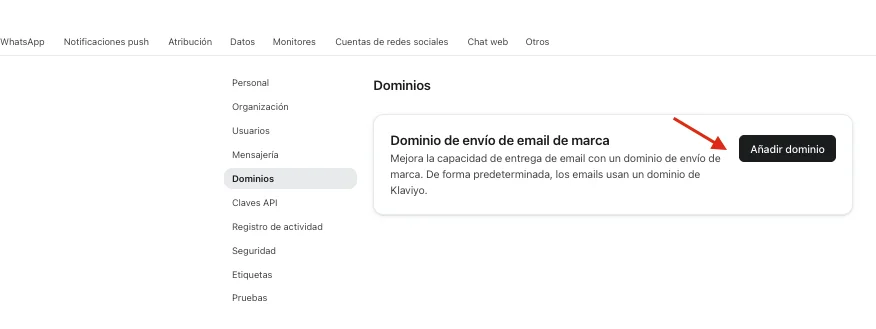
1. Open Domains and add one
In your account menu, go to Settings → Domains. Click Add domain to start the wizard.
If there is already an active domain, check what it is used for before replacing it. Klaviyo lets you keep separate domains for marketing, transactional messages and customer support; choose the type of sending you are setting up.
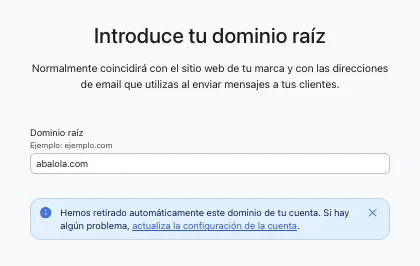
2. Confirm the root domain
Check the root domain shown in the wizard. It should be your business domain, such as yourshop.com. If Klaviyo has detected it automatically, check it before carrying on.
The screenshot shows abalola.com because that is the domain used to prepare the guide. In your account you need to enter your own.
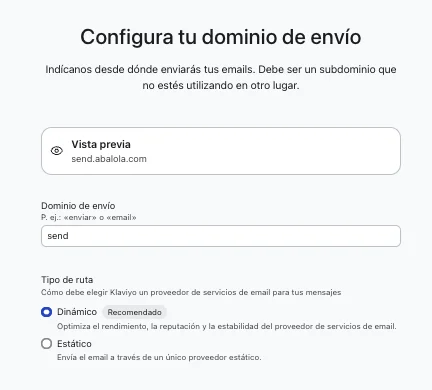
3. Choose an available subdomain
Enter a subdomain that is not already in use. For example, send would give you send.yourshop.com. Check with whoever manages your DNS that the name is not already serving another tool.
The wizard may offer dynamic routing, which generates NS records, or static routing, which generates CNAME records. Use whichever option is compatible with your DNS provider. Do not copy the values from another account.
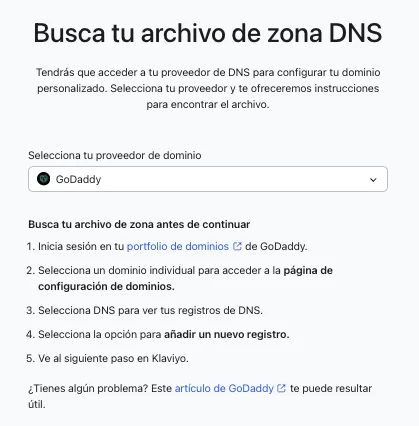
4. Connect your DNS provider
You can complete the automatic connection with Entri if it is available for your domain, or add the records manually. If someone else looks after the DNS, share the wizard's instructions with them.
In the manual set-up, select your provider. The screenshot shows GoDaddy as an example; you need to sign in to the provider that actually manages your shop's DNS.
5. Add the records from your account
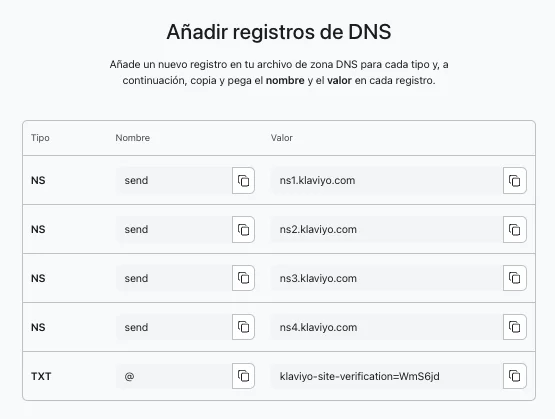
Klaviyo will show the type, name and value of each record. Copy them into your provider's DNS panel and save the changes. The screenshot shows an example set-up with NS records and a TXT verification record.
Always use the values generated by your own account. Do not replace the root domain's name servers with the ones in the example: the delegation shown applies to the sending subdomain.
If the option to add DMARC appears, first check whether your domain already has a record. Avoid creating a second DMARC record on the same name. You can check what is published with the DMARC checker and review the records with DNS lookup.
6. Verify and activate the domain
Go back to the Klaviyo wizard and click Verify. If a record does not match, check its name, value and type in the DNS provider. Changes can take time to propagate; avoid repeating them without checking what is missing.
Once verification passes, apply or activate the domain for the type of sending you chose. The domain set up for marketing should not be confused with another one you have reserved for transactional or customer support messages.
7. Check a send before carrying on
Send a test and check the sender, the links and the authentication of the message. Confirm in Klaviyo that the domain shows as active before resuming the campaigns and automations you had paused.
Setting up the domain does not guarantee reaching the inbox. The list, the volume and how recipients respond all count too. If you are starting out with a new account, plan the ramp-up of your sending with whoever looks after your deliverability.
If verification does not pass
| What you see | What to check |
|---|---|
| A record does not appear | Confirm that you added it in the active DNS provider and that you saved the change. |
| The name ends up duplicated | Some panels add the domain automatically. Check that send.yourshop.com.yourshop.com has not been saved. |
| The subdomain is already taken | Check with whoever administers your DNS before deleting or replacing records. |
| Verification is still pending | Check propagation. It can take up to 48 hours; if it persists, look into the specific error with the provider and Klaviyo. |
Finish the set-up
If someone on the team is still missing, follow the guide to giving access to Klaviyo. If you need to add the card, see how to set up the payment method.
Sources and further reading
AI-assisted translation
Article by Dídac Anton. The English, German, Dutch and French versions were translated from Spanish with the help of AI.
Read the Spanish originalRecommended articles

How to set up the payment method in Klaviyo
Where to add or change your Klaviyo card, what details you need and what to check if a payment fails.

How to connect WhatsApp to Klaviyo
Connect WhatsApp Business to Klaviyo: prepare your number, set up Meta Business, verify your business and check consent.

How to add users and manage permissions in Klaviyo
Guide with screenshots for giving access to Klaviyo, choosing the role, accepting the invitation and changing permissions.